
Documents
Where a company should keep its contracts and regulations


 Help
Help
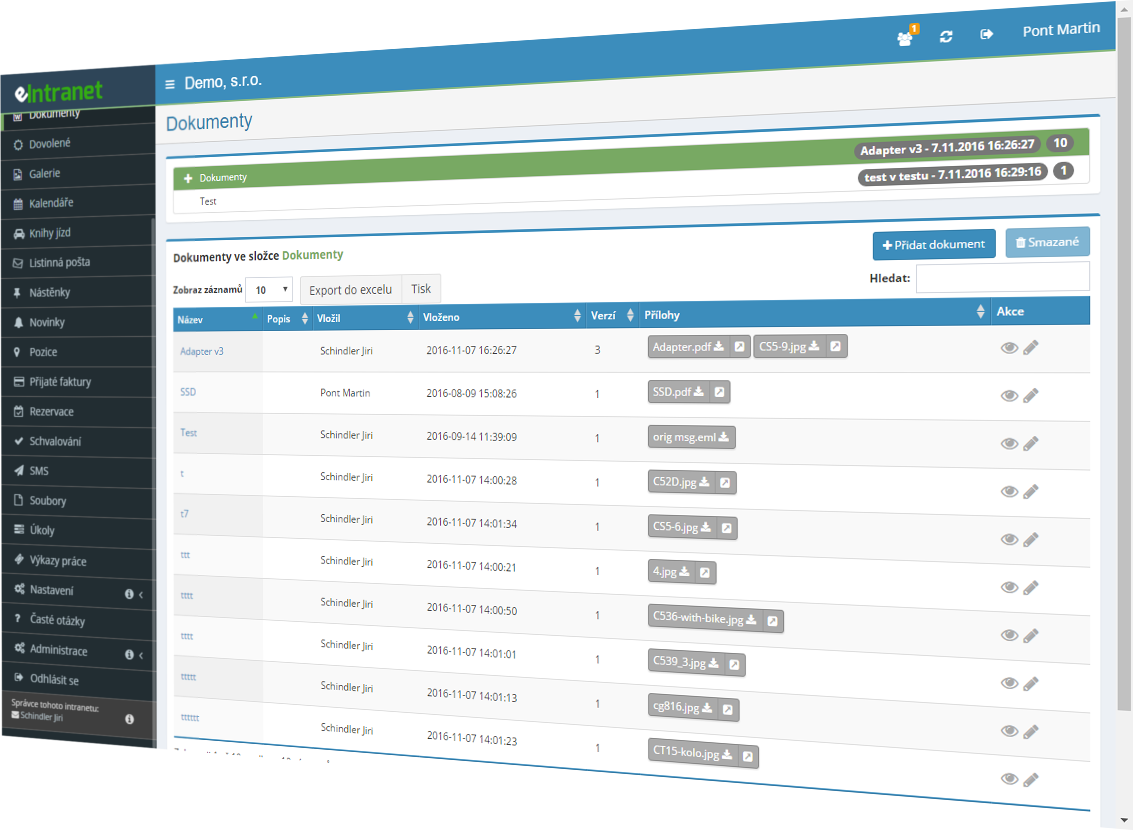
Contracts, internal regulations, forms and manuals get one home. Sort them into folders and subfolders as deep as you need, and collapse the tree with a single button.
Every edit creates a new version and the older ones stay. Each document shows who uploaded which version and when, and the file behind any of them is still downloadable.
Five levels, from reading up to creating subfolders and links out of the company. Rights go to users or straight to groups, and to several folders at once.
Generate a public link with an expiry date and a download limit. You decide whether it points at one fixed version or always at the newest one.
What you can use the documents module for
-
Searching inside the files themselves
The filter goes through names, descriptions, tags and the content of attachments. A switch widens the search from one folder to the entire repository.
-
Custom fields on every folder
Up to four columns of your own — date, number, text, a picklist, a company from CRM or a job order.
-
Bulk upload and bulk download
Drag in up to forty files and each becomes its own document. Ticked records are then downloaded in one go.
-
A lock on the document you are working on
Flag yourself as working on it and others cannot edit meanwhile. No more versions overwritten by two people at once.
-
An announcement about a new document
After saving, have a news item created straight away so the whole company hears about it.
-
Adding documents through the REST API
An external system inserts the document itself and optionally creates a public link for it at the same time.
Corporate Document Sharing Module allows you to centrally store and easily share all key business data – from contracts through internal regulations to standards and guides. With its intuitive interface, you can quickly find the needed file, add it to the appropriate category, and immediately set access permissions.
Key features and benefits:
- Document type categorization – keep files organized for efficient searching.
- Granular permission settings – specify who can read, edit or manage documents in each folder, reducing the risk of unauthorized access.
- Change history tracking – every modification is logged, so you can easily restore a previous version or see who changed what.
- Simple sharing with external partners – provide collaborators access to needed documents via secure links without installing additional tools.
- Integration with other eIntranet.net modules – connectivity with CRM, HR, or inventory ensures consistent data across the organization.
Try the Corporate Document Sharing Module and simplify managing key information in your company. Call now to discover how quickly you can boost your team’s productivity.
What company document management is and what it does
Managing company documents means that contracts, internal regulations, forms, standards and manuals sit in one place, have a designated owner, a clearly defined valid version and a precisely bounded set of people who can reach them. The Documents module in eIntranet does this with a folder tree, versioning of every record, and access rights configured separately for each folder.
The fundamental difference against a shared drive is not capacity. It is that a document here is not a file but a record: it has a name, a description, tags, optional custom fields, one or more attachments, and a history of every version with a note of who uploaded it and when. Overwrite a file on a drive and the past disappears; in the module a new version is created and the previous one remains available for download.
It gets deployed where people have stopped knowing which file is the valid one — typically at companies with policies that change every year, and at those who need part of their documents opened up to some departments only.
How documents in eIntranet work step by step
- Building the structure. The administrator or module manager creates the main folders in Settings → Documents. Users with the subfolder permission then grow their own branches directly from the document view.
- Assigning rights. Five permission types are set separately for every folder. The Everyone option grants the right automatically to people who have not even joined the company yet.
- Adding a document. From the menu above the table you choose to add a document, fill in the name, description and tags, drag in the attachments and optionally complete the folder's custom fields. Whether the name and an attachment are mandatory is decided in the module settings.
- Working on it. Before editing, flag yourself with the I will work on this button. With locking enabled, others cannot edit in the meantime and can see who is holding the document.
- A new version. Every edit creates a new version. If the folder has the option for a new version only when the file changes, altering just the description will not raise the version number.
- Sharing. Colleagues get an internal link that leads straight to the document inside the application. For people outside the company you generate a public link with limited validity.
- Deleting. The document goes to the recycle bin and stays recoverable until the administrator empties it.
Everything the Documents module can do
Structure and organisation
- A folder tree with unlimited nesting depth, plus Collapse all and Expand all buttons above it
- Moving a document or a whole folder elsewhere in the tree; a folder can only be moved if it has no subfolders
- Up to four custom fields per folder: yes/no, whole number, decimal number, date, single-line and multi-line text, picklist, a company from the CRM module and a job order from the Orders module
- Folder display conditions, which govern when a folder appears in the tree at all
Versions and locking
- A complete version history sorted newest first, with name, description, uploaded by, uploaded at, version and attachments
- Download of the files behind any older version
- An optional right for the manager to delete a specific version
- A working-user flag that, with locking switched on, prevents simultaneous editing
Searching
- Filters by document name, file name, upload date from–to, uploader, file type, tag, description and attachment content
- A switch between searching the current folder and all folders; when searching across everything, the table also shows which folder the document was found in
- An active filter is recognisable by the panel heading turning bold red
Bulk operations and outputs
- Bulk addition of up to 40 files at once, each becoming a separate document named after the file, at version 1
- Up to 60 attachments on a single document, each up to 100 MB
- Bulk moving and bulk downloading of ticked documents
- Export of the list to Excel including subfolders, with columns for folder, ID, name, uploader and upload date
How documents get into the system and how they get out
There are three ways in. Adding a single document by hand with the fields filled in, a bulk upload of up to forty files at once, and the REST API for systems that are meant to create documents themselves.
REST API for automated insertion
The interface is first enabled in Settings → Documents on the RestAPI tab. The caller signs in with a POST request to /RestAPI/Login carrying username, password and RestAPIPassword, and receives a RESTAPIHash valid for five minutes. A GET request to /RestAPI/Get/[RESTAPIHash]/Documents_types/ retrieves the list of folders and their identifiers. The insertion itself is a POST to /RestAPI/Post/[RESTAPIHash]/Documents/, passing the target folder, the user under whose name the document is created, the name, an array of file names and an array of their contents in Base64. Setting the public sharing parameter creates an external link immediately and returns its URL in the response along with the ID of the new document.
The way out
An internal link leads straight to the document and works for logged-in eIntranet users. A public link is meant for people with no access to the system: you set its expiry date (14 days by default), the permitted number of views or downloads (zero meaning unlimited) and whether it should always point at one fixed version or always at the newest one. The link is shown only once, at creation — for security reasons the system will not display it again, so save it before you close the dialog.
The document list can be exported to Excel as the file export-eIntranet-Documents.xlsx. Companies on the extra plan can additionally switch on a daily automatic export of all documents into a ZIP archive ready for download.
No hardware is needed for any of it — everything runs in the browser.
How to choose a document management system
The tools look alike in a feature list. They part company the moment a document needs to do more than sit on a drive.
- What happens to the previous version? Ask whether it stays downloadable, not merely recorded. A history you cannot pull the old file out of is not versioning.
- How fine-grained are the rights? The distinction between "can see but not save", "may create a subfolder" and "may send a link outside the company" matters enormously in practice. eIntranet distinguishes five levels and sets them per folder.
- Can a link for an outsider expire? A link with no expiry date and no download limit is a permanently open route to the document that nobody will remember a year later.
- Does it search inside the files? Full text on names is not enough. Ask as well whether files uploaded before indexing was switched on make it into the index.
- What stops two people overwriting each other? Without a lock you get two versions, one of which quietly disappears.
- How do you get the data out when you leave? What you want is a bulk export, not downloading things one by one. In eIntranet that means the Excel list export and, on the extra plan, a daily ZIP archive of every document.
Documents for small firms, branches and external collaborators
A company of up to twenty people. Three to five main folders, rights assigned to groups, done. Versioning proves its worth mostly on policies and price lists, which do change.
A company with branches. The structure usually splits by branch and the same subfolders repeat inside each one. This is exactly where bulk rights editing earns its keep — you set identical permissions on dozens of folders at once instead of clicking through them one by one.
Working with outsiders. An accountant, a lawyer or an auditor need not be an eIntranet user. They get a public link with an expiry date and a download limit, optionally set to "always the newest version" so that an update does not leave them looking at a stale file.
Sites with certification. Combining folder custom fields (revision date, standard number, responsible person) with folder display conditions helps keep track of documents that have a validity period.
Companies with systems of their own. The REST API inserts documents automatically — useful for generated protocols, invoices from another system or measurement outputs.
What document management costs
You pay per user, not per module, and every module is included in every plan. With documents, though, a second quantity decides the outcome, one the other modules do not deal with: disk space. It depends on the plan you choose and is counted per user — 0.5 GB on the basic plan, 2 GB on normal and 4 GB on extra.
| Number of users | Basic 0.5 GB/user | Normal 2 GB/user | Extra 4 GB/user |
| 1–10 | 2.4 € | 2.8 € | 3.2 € |
| 11–20 | 2.1 € | 2.5 € | 2.9 € |
| 21–50 | 1.7 € | 2.1 € | 2.5 € |
| 51–100 | 1.5 € | 1.9 € | 2.3 € |
| 101 and more | 1.4 € | 1.8 € | 2.2 € |
Prices are per user and month, excluding VAT. The current figures are always on the price list page.
The practical consequence for documents: the space adds up. A company with thirty users on the normal plan has 60 GB available even if only five people actively upload anything. So the deciding factor should not be how many people write into the module, but the volume you store — and above all whether scanned contracts and photo documentation are heading into the system, or only text files. While you weigh that up, remember that versioning consumes space: every version keeps its own attachment.
The additional costs involve no hardware. The only function tied to a plan is the daily automatic export of all documents into a ZIP archive, available on the extra plan alone; telephone technical support belongs there too. Consulting, training and custom development are charged according to the price list.
Free document storage: what a shared drive handles
A shared drive on a server, OneDrive or Google Drive are already paid for in many companies and are entirely sufficient for a large share of documents. They offer synchronisation to the computer, which eIntranet does not, and you work with them from the file explorer. If your documents are used by five people who trust each other, there is no point changing anything.
The limit shows up at four points. Rights on a shared drive tend to be coarse, per directory — either somebody has access to a whole branch or to nothing — whereas here reading, writing, deleting, subfolder administration and the right to send a link outside are all distinguished. Versions exist on a drive but usually nobody ever finds them; in the module the history is part of the record. A link shared from the cloud often has neither an expiry nor a download limit. And custom folder fields linked to a company from CRM or to a job order have no equivalent in a directory structure.
A sensible rule: documents where nobody worries about which version applies can stay where they are. What belongs in the module is what has validity, revisions and a responsible person — policies, contracts, standards, protocols.
You can test it for 14 days free of charge, with no payment details required.
Rolling out documents so that you can still find things a year later
- Structure first, uploading second. Lay out the main folders according to how the access rights differ, not according to what your current drive looks like. A folder everyone can see and a folder for payroll paperwork have no business being neighbours, however adjacent they were in the old directory.
- Give rights to groups, not to people. Assign a permission to a group of users and a new employee gains access automatically the moment you put them in that group. With named rights somebody has to remember every single time.
- Use bulk rights editing. When creating dozens of folders you set the permissions on all of them at once. Clicking folder by folder is the most common reason a structure falls apart within six months.
- Think custom fields through in advance. Each folder carries four. Changing or removing an existing field on a folder that already holds documents can mean losing the data stored in that field.
- Upload in bulk and name the files beforehand. A bulk addition takes the document name from the file name, so tidy file names carry straight over into the system.
- Switch on what should be mandatory. The settings decide whether a document can be saved without a name and without an attachment. Turning that on later, once thousands of records are in, means chasing missing details by hand.
If searching inside file contents returns nothing, the filter is not at fault: full text works over an index, and files uploaded before indexing was enabled need not be in it. Reindexing is started by the administrator.
What to read next
After adding a document you can create a news item straight away, so the whole company hears about it.
A folder's custom field can tie a document to a specific company from CRM.
The second link available to custom fields: a document assigned to a particular job order.
Frequently asked questions
Yes. When adding a new document you also define keywords (tags) by which the document can later be found.
The filter has a separate field for them and searches across folders, so a tag connects documents that belong together even when each of them sits somewhere else in the tree.
Yes. The module settings allow a multi-level structure for filing documents. Access rights can be assigned to users on individual folders and subfolders according to that structure, and the number of folders or subfolders is not limited.
Above the tree there are Collapse all and Expand all buttons. A folder with no subfolders can later be moved elsewhere in the tree.
Yes. The settings of the documents module allow the option of creating a news item to be offered automatically whenever a new document is added.
The option then appears in the dialog for adding a document as a tick box. Once saved, a record is created in the News module, so the whole company hears about the document.
Yes. The following files can be edited directly in the module (the user must have Microsoft Office installed):
- Word (.doc, .docx, .odt, .rtf)
- Excel (.xls, .xlsx, .csv, .ods)
- PowerPoint (.ppt, .pptx)
The file opens in the corresponding Office application through WebDAV and is saved back into eIntranet.
Yes. Within the documents module you can also search inside the uploaded files, using the Filter section. The function covers more than sixty file types (such as .doc, .docx, .xls, .xlsx, .ppt, .pptx, .pdf, .txt, .csv), including PDF and OCR over scanned documents.
Full text works over an index, so files uploaded before indexing was enabled need not be in it. Reindexing is started by the administrator.
Yes, it is possible. To generate a link, it is necessary to have the relevant access rights assigned in the module settings. Subsequently, a link (link icon) is created directly in the document module, which can be sent as needed.
In that case your browser is probably blocking multiple downloads. The Download selected function opens the attachments of all ticked documents one after another, which the browser may treat as unwanted.
In Chrome you allow multiple files in the site settings under Automatic downloads.
Yes, the module can store individual versions of documents. Every edit creates a new version and the older ones remain, together with their files ready for download.
The history is sorted newest first and each version shows who uploaded it and when. If the folder has the option for a new version only when the file changes, altering just the description will not raise the version number.
A single file may be up to 100 MB. One document can take up to 60 attachments at once; with bulk addition, where each file becomes a separate document, the limit is 40 files per upload.
You can upload repeatedly. Bear in mind that every version of a document keeps its own attachment, so versioning consumes the disk space of your plan.
Yes, that is possible. To generate a link you need the relevant access rights assigned in the module settings. A link (the link icon) is then created directly in the documents module and can be sent out as needed.
For the link you set an expiry date, the permitted number of views or downloads, and whether it should point at one fixed version or always at the newest one.
You decide when you create it. The default validity is 14 days, but the date can be changed. Separately you set the permitted number of views or downloads — zero meaning unlimited — and whether the link should always point at one fixed version or always at the newest one.
Careful: for security reasons the link is shown only once, at creation. Save it before you close the dialog, because the system will not display it again.
Registration is non-binding and includes a free 14-day trial of the application.